Photify AI: AI Photo Generator
Ex-human, IncPhotography
4.2509.00 Reviews
- Version
- 3.0.18
- Installs
- 1.00M
- Age Rating
- Teen
Screenshots

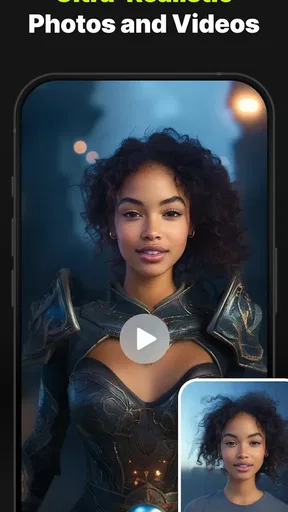
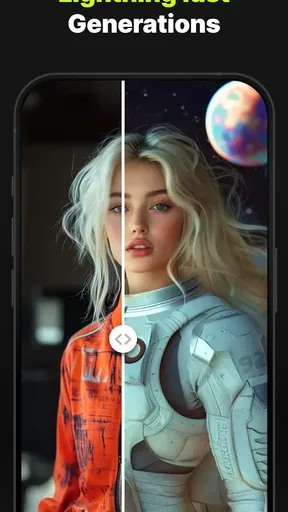
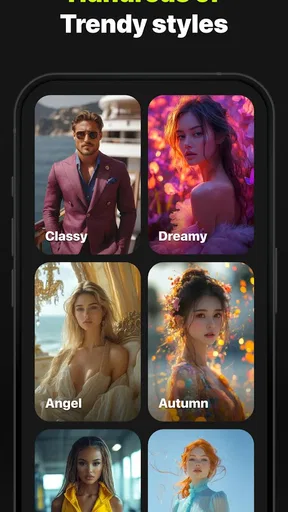
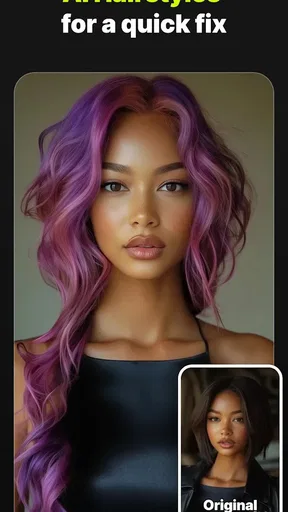

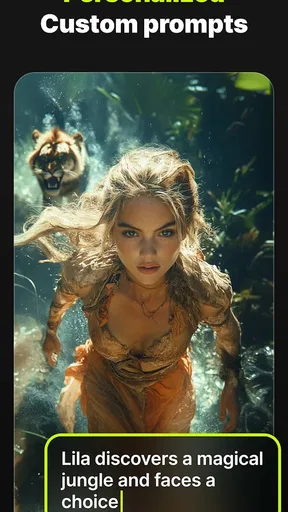
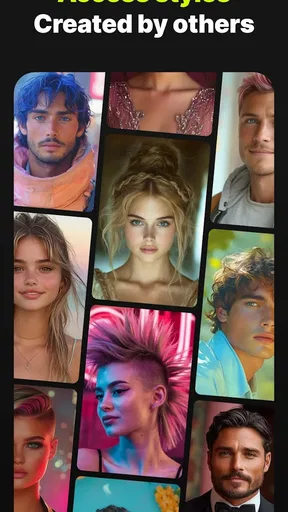
Our Review of Photify AI: AI Photo Generator
 Analysis by Appyee
I look at AI photo apps through a practical lens: can I get a result I actually want without wrestling with an editor, and can I use the app comfortably in the circumstances where I need it? Photify AI: AI Photo Generator is a photography app from Ex-human, Inc that turns an ordinary image into a more stylized one. Its appeal is immediacy, but the experience also raises useful questions about control, readability, and whether an AI-generated look suits the job.
Readable enough for a quick creative task
The app is designed around a simple sequence: choose an image, pick a direction, and review the transformation. That straightforward approach is helpful if, like me, you want to make a playful portrait without learning layers, masks, or a full desktop editor. The first screen and the main choices are easier to approach than the dense toolbars common in advanced photo software.
That simplicity has a trade-off. A guided flow can make the first attempt feel approachable, but it may leave less room for the detailed adjustments an experienced editor expects. If you need to correct a particular edge, retain precise skin texture, or tune several image properties independently, a conventional editor is likely to give you more direct control. I’d treat this as a tool for exploring a look, not a replacement for careful retouching.
The app has an average rating of 4.2 from around 30,000 ratings, and it has passed one million installs. Those figures suggest that many people are willing to try it, though they can’t tell you whether its particular style suits your taste. I’d use a low-stakes photo first and judge the result for myself rather than assuming a popular app will match every portrait or purpose.
Different ways to engage with image-making
For someone who finds a large editing interface tiring or confusing, a small set of clear choices can reduce the effort of getting started. I also see value for people who don’t think of themselves as artists: choosing a style and comparing a result can be less intimidating than building an image from scratch in a professional graphics app.
There are still practical motor and sensory considerations. A touch-based workflow depends on being able to select a photo and tap controls accurately, and visually comparing several treatments can be demanding for anyone sensitive to strong effects or busy imagery. I would make changes in a calm setting, pause between generations, and avoid treating a more dramatic result as automatically better. The app’s ease of entry should not be confused with a guarantee that every interaction works for every person.
Access also depends on the moment. On a commute, in a bright room, or while sharing a phone with someone else, a quick transformation may be convenient; a detailed review of faces and fine image details may not be. For a clearer decision, I’d wait until I can look at the result on a screen and in lighting that let me judge it comfortably. The app is free to download, is rated for teens, and offers in-app purchases, so families may want to discuss spending before handing over a device.
How Photify AI fits into an everyday photo routine
One realistic use is making a more distinctive image for a casual profile or a message to friends. I might take a familiar portrait, try a few visual directions, and keep the version that still feels recognizably like the person. That last check matters: AI styling can be fun, but a polished or heavily altered face may not be appropriate when the image is meant to represent someone accurately.
If I were preparing a picture for a work profile, a school project, or a family announcement, I’d first ask whether an imaginative treatment helps the purpose. For a playful invitation or a private joke, it may add personality. For an application, an official document, or any situation where likeness and trust matter, I would use an unaltered photograph or a conventional edit instead. The same flexibility that makes the app entertaining can make it the wrong choice for factual representation.
First Impressions: A User-Friendly Interface
Right off the bat, Photify AI impresses with its sleek and intuitive interface. You don’t need to be a tech wizard to navigate through the app. Once you open it, you’re greeted with a simple dashboard that guides you on how to start transforming your photos. It’s really as easy as selecting a photo and choosing the type of transformation you want.
The app offers a variety of styles to choose from, including classic art, futuristic themes, and quirky filters. You can even use the AI to blend different artistic styles, which is pretty cool. It’s like having your own personal photo editor, but without the fuss.
Exploring the Features: What Can You Do?
One of the standout features of Photify AI is its ability to generate art from your images using AI algorithms. It doesn’t just slap a filter on your pic; it actually analyzes the image and applies artistic elements that enhance the original photo. The results can be quite stunning and often surprising.
There’s also a feature where you can create digital art from scratch. You can choose different elements, like colors and brush styles, and the AI will help you generate a one-of-a-kind piece. It’s perfect for those moments when you’re feeling creative but don’t want to deal with the complexity of traditional graphic design tools.
The app supports various file formats, which is a bonus if you’re looking to share your creations across different platforms. You can save your edited images in high resolution, ensuring that your artwork looks great whether you’re posting it online or printing it out.
Getting more useful comparisons from each image
A useful way to explore styles is to start with one image that has a clear subject and a simple background. That makes it easier to tell whether a change comes from the treatment or from a busy scene competing for attention. I’d also keep the original nearby and compare the two after a short break; a dramatic first impression can be exciting, but a pause helps reveal whether the face, mood, or framing has shifted in a way I don’t like.
For a portrait, a straight-on image with an unobstructed face is a sensible first test. That is not a promise that every generated version will preserve details; it is simply a way to give the transformation a cleaner starting point. If the output changes a feature that matters to you, I’d move on rather than repeatedly trying to force the same picture into a look that doesn’t fit.
This is also where Photify AI differs from a standard filter app. A conventional filter usually changes color, contrast, or tone in a predictable way, while AI styling can reinterpret the image more broadly. That can make the result feel more imaginative, but it also means the outcome may be less faithful to the source. Compared with a full editor, it is easier to experiment but offers a less hands-on path for precise corrections. I’d choose based on whether I value surprise or control for that particular picture.
Performance and Efficiency: Does It Deliver?
Performance-wise, the app runs smoothly on both Android and iOS devices. I tried it on my mid-range Android phone, and the processing time was impressively quick. The AI transformations took only a few seconds, and the app didn’t crash or slow down my device, which is always a plus.
One thing I appreciated was the app’s efficiency in handling complex images. Whether it’s a landscape photo or a detailed portrait, Photify AI manages to maintain the integrity of the original image while adding its artistic flair. This makes it suitable for both casual users and those who might want to use it for more professional purposes.
Where the workflow can become less comfortable
Speed is useful when I’m testing several ideas, but it does not remove the need to inspect each result. I would avoid judging a small preview as if it were the finished image, especially if I plan to crop it, print it, or share it somewhere people will view it closely. A quick generation is a starting point; checking whether the output still looks right at the intended size is a separate step.
There is also a difference between having creative options and having complete control. If an AI result changes a detail in a way I dislike, the most efficient response may be to try a different source photo or choose another style, rather than spend time expecting the app to behave like a manual retouching suite. That is a useful trade-off to understand before starting a project with a specific, non-negotiable visual brief.
Photify AI is free to download, while in-app purchases range from $0.99 to $99.99 per item. I’d check the purchase screen carefully before committing to anything and decide what I want to accomplish before exploring paid options. A casual trial can stay casual, but repeated experiments may make it easier to lose track of optional spending. The current version is 3.0.12, and the minimum operating-system requirement is version 8.0.
Personal Experience: Why I Love It
What really sets Photify AI apart for me is the fun factor. It’s almost addictive to see how the app can completely transform a mundane photo into something extraordinary. I found myself spending hours experimenting with different styles and sharing my creations with friends, who were equally impressed.
The app also encourages creativity. Even if you’re not naturally artistic, the AI helps you explore different artistic avenues, which can be quite inspiring. It’s like having a mini art studio in your pocket.
Who is likely to enjoy it, and who may prefer another tool?
I think it suits people who want a low-effort way to make expressive portraits, try an unusual visual treatment, or create an image for a lighthearted social post. It can also help someone get past the blank-page feeling: rather than deciding every brushstroke, you can begin with an existing photo and see how a new style changes its character. For a casual creative session, that is a genuine advantage.
I would skip it for work that demands exact retouching, consistent brand colors, careful batch editing, or dependable likeness. Photographers who already use layered editing software may find the app too automatic, while anyone who needs an image to remain documentary should be cautious about AI reinterpretation. If accessibility needs depend on specific controls, large text, screen-reader behavior, or keyboard navigation, I’d test the app directly before relying on it; I don’t assume a simple-looking interface meets every individual need.
Privacy-minded users should also make a deliberate choice about which pictures they select for AI processing. I would avoid experimenting with sensitive images or pictures of other people unless I had their permission and was comfortable using an AI photo tool for that purpose. That is a sensible boundary for this kind of app, especially when the result is likely to be shared beyond the original audience.
Final Thoughts: Is It Worth It?
If you’re someone who loves photography or simply enjoys playing around with images, Photify AI: AI Photo Generator is definitely worth checking out. It’s user-friendly, efficient, and packed with features that make photo editing accessible to everyone. Whether you’re looking to spice up your social media feed or create personalized artwork, this app has got you covered.
So, if you’re ready to unleash your inner artist, give Photify AI a try. It’s available for download on both Android and iOS, and it might just become your new favorite app.
A more careful recommendation
My recommendation is enthusiastic but specific: I’d try it for playful transformations and creative prompts, not as my only photo editor or as a substitute for an accurate headshot. Ex-human, Inc has made an app with a low barrier to experimentation, and its Teen content rating is worth noting for households deciding who should use it. A strong result can be delightful; a weaker or less faithful one is a reminder to keep the original and choose the tool according to the stakes.
For anyone deciding whether to install it, I’d begin with an ordinary, non-sensitive photo, explore a small number of styles, and compare the output with the original before sharing. That approach makes it easier to judge both the visual quality and the comfort of the workflow without turning a quick experiment into a commitment. The app’s inclusive value is clearest when its simple creative path meets the user’s own needs; it is not a universal replacement for more controlled editing or individualized accessibility support.
Verdict
Strengths of Photify AI: AI Photo Generator
- Generates high-quality images quickly.
- User-friendly interface for easy navigation.
- Wide variety of styles and filters.
- Regular updates with new features.
- No watermark on generated images.
Limitations of Photify AI: AI Photo Generator
- Limited free version features.
- Requires a stable internet connection.
- Can be resource-intensive on devices.
- Occasional app crashes reported.
- Subscription can be pricey for some.
Similar Picks in This Category
View All
Google Photos
Google LLC4.4

Gallery
Google LLC4.2

Picsart AI Photo Editor, Video
PicsArt, Inc.3.9

B612 AI Photo&Video Editor
SNOW Corporation4.1

BeautyPlus-Selfie Photo Editor
PIXOCIAL TECHNOLOGY (SINGAPORE) PTE. LTD.4.5

Remini - AI Photo Enhancer
Bending Spoons4.1
Frequently Asked Questions
What is Photify AI and how does it work?
Photify AI is an innovative photo editing app that utilizes advanced artificial intelligence to enhance, create, and transform your images. It offers features like automatic enhancements, artistic filters, and AI-generated effects. Simply upload a photo, and let the AI do the magic, providing professional-quality results with minimal effort.
Is Photify AI available for both Android and iOS devices?
Yes, Photify AI is available for both Android and iOS platforms. Users can download it from the Google Play Store for Android devices and the Apple App Store for iOS devices. Ensure your device meets the minimum system requirements for optimal performance of the app.
Are there any in-app purchases or subscription fees?
Photify AI offers a free version with basic features, but to unlock premium filters and effects, users need to subscribe to a monthly or yearly plan. The subscription provides access to exclusive content, removes ads, and offers additional customization options for a more advanced editing experience.
Can Photify AI handle high-resolution images?
Yes, Photify AI is designed to support high-resolution images, allowing you to edit and enhance photos without losing quality. However, processing time may vary based on the size and complexity of the image, as well as your device's performance capabilities.
How secure is my data with Photify AI?
Photify AI prioritizes user privacy and data security. The app employs encryption methods to protect your photos and personal information. Images processed through the app are not stored on servers unless you choose to save them in the cloud. Always review the app’s privacy policy for comprehensive details.
